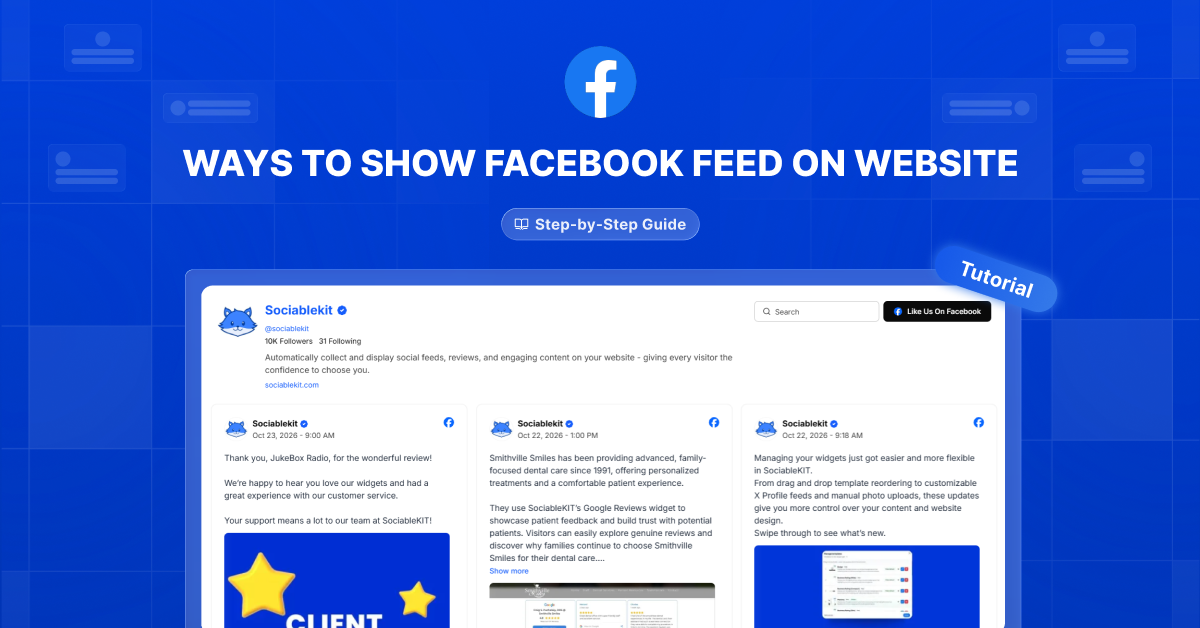
This article explores different ways to show your Facebook feed on your website. We’ll walk through the options so you can choose an approach that fits your website and makes your Facebook content easy for visitors to explore.
The way you display your Facebook feed can affect how easily visitors find your updates and how well the content fits your website’s design. Keep reading to understand your options and find a method that works for your needs and technical skills.
A common mistake is adding a Facebook feed without checking how it looks and works on your website. You might end up with a feed that doesn’t match your design or is hard to read on a phone. Take a little time to explore the options below so you can choose a setup that works for you and your visitors.
Your Facebook feed should give website visitors a reason to stop, read, and connect.
Start with Facebook’s Own Tool
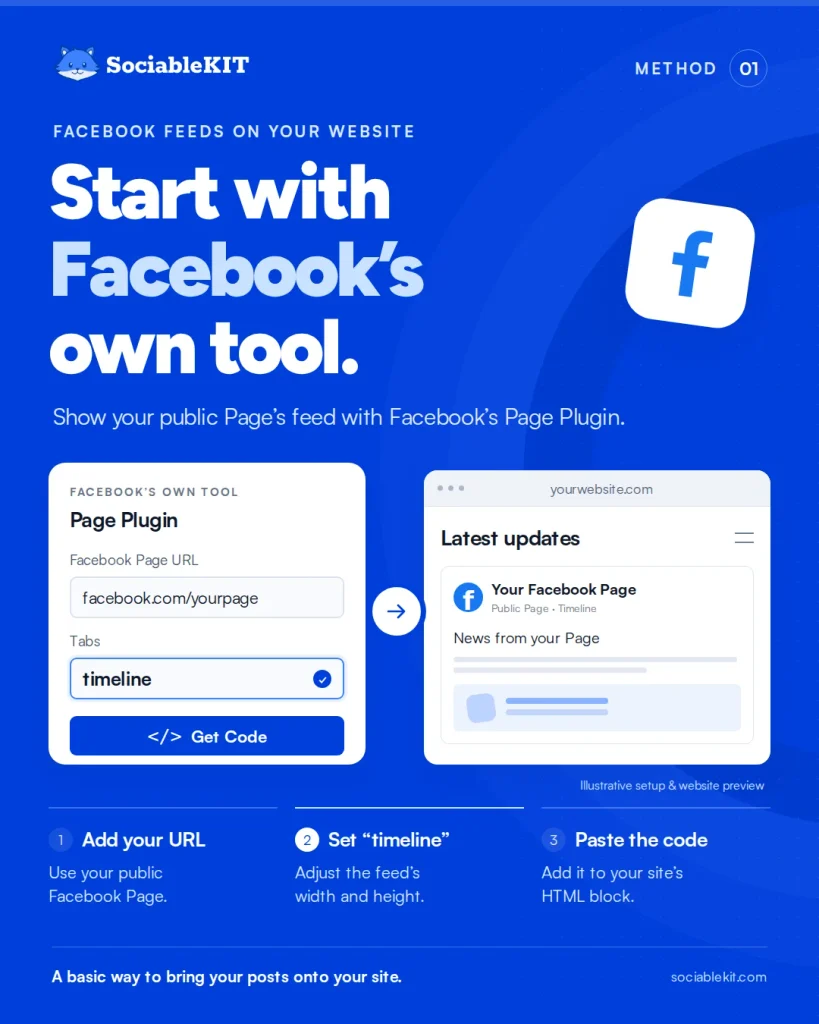
Facebook’s Page Plugin lets you display a public Facebook Page’s feed on your website. Enter your Page URL, select “timeline,” and paste the generated code into your website’s HTML block.
Milwaukee’s website training guide uses its Health Department’s Facebook Page as an example. It tells staff to enter their department’s Page URL, select “timeline,” and adjust the feed’s size. This gives staff a clear process for bringing Facebook updates onto a department’s website.
Try Facebook’s Page Plugin if you want a basic way to display your Page’s posts on your website.
Make Your Feed Feel at Home
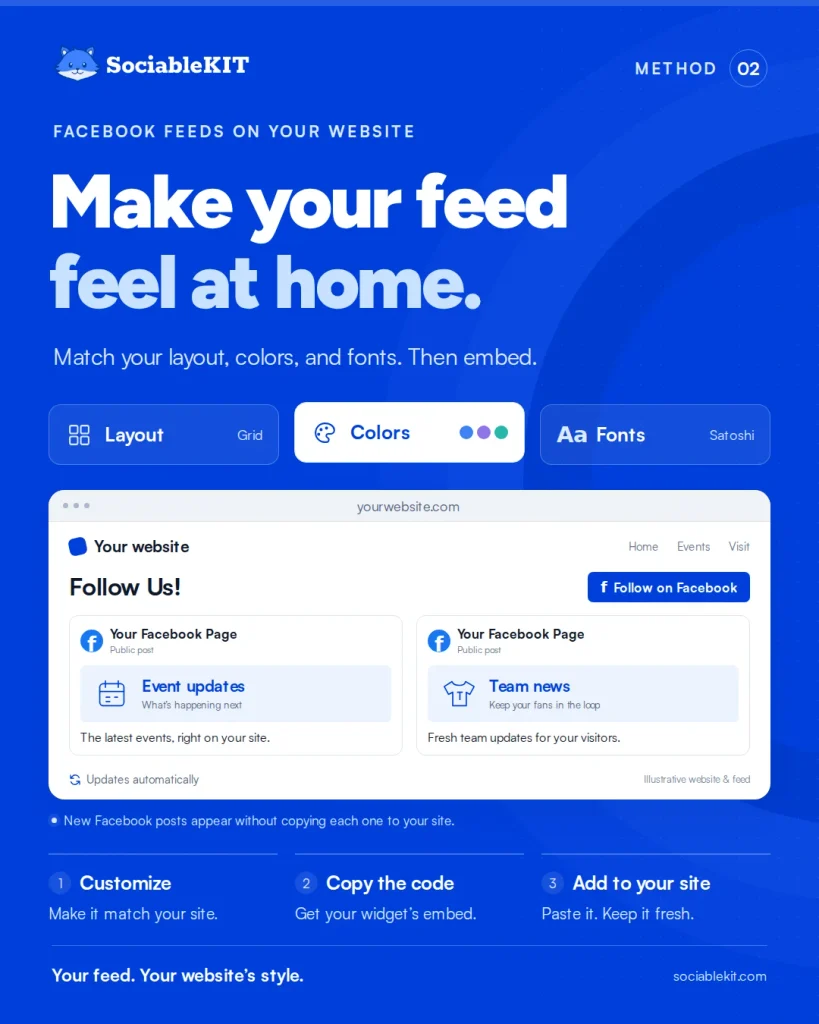
A feed widget like SociableKIT lets you match your Facebook feed’s layout, colors, and fonts to your website. Customize the design, then copy and paste the embed code into your site.
Columbus Civic Center added SociableKIT’s Facebook Page Posts widget to its homepage. Visitors can browse event and team updates in its “Follow Us!” section. The feed updates automatically, saving staff from copying each Facebook post onto the website.
Choose a customizable widget when you want a Facebook feed that fits your website’s design.
Let WordPress Handle It
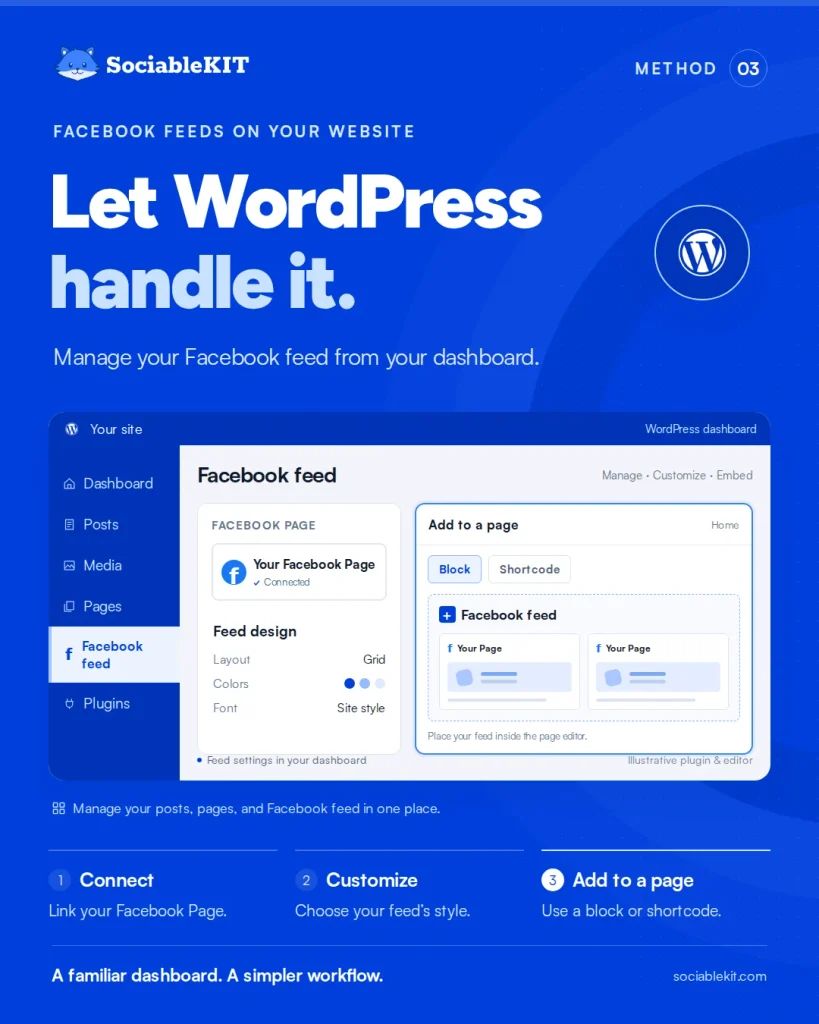
If your website runs on WordPress, a Facebook feed plugin lets you manage your feed from your dashboard. Connect your Facebook Page, customize the feed, and add it to a page using a block or shortcode.
Christopher Wells shared on WordPress.org that his client used a Facebook feed plugin on three websites. After using it for a year, they renewed their subscription. He also praised the support they received.
Consider a WordPress plugin if you want to manage your Facebook feed alongside your website’s other content.
Give One Post the Spotlight
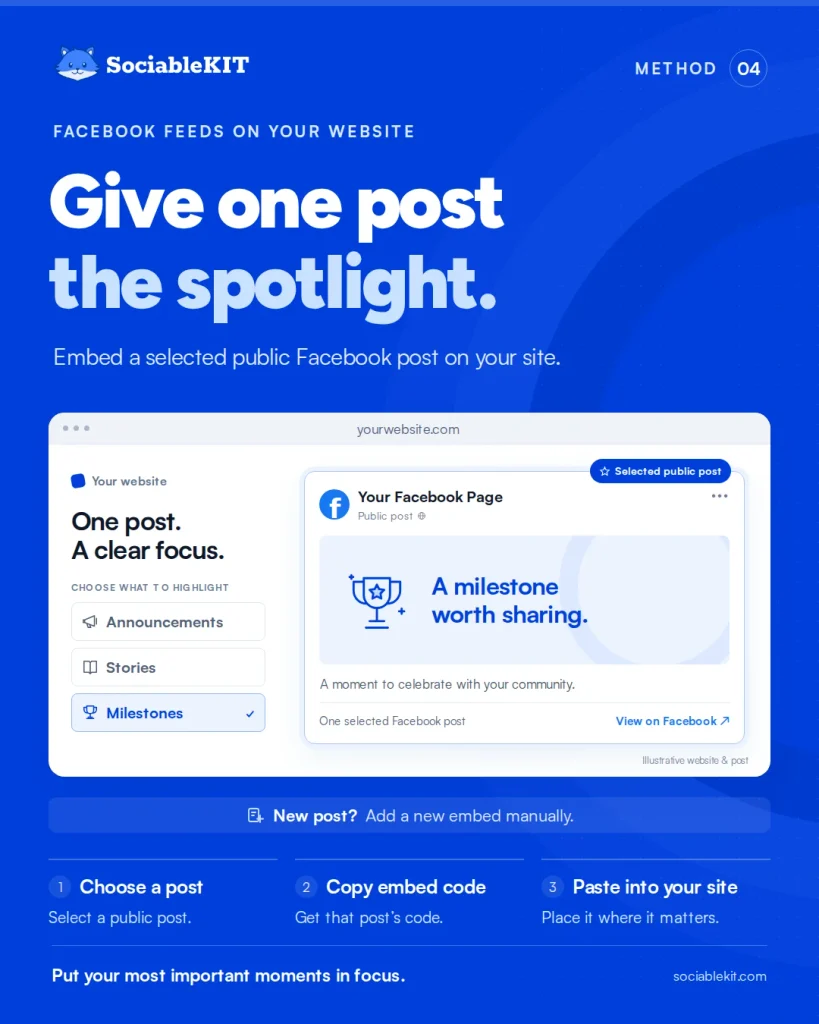
You can display selected public Facebook posts by copying each post’s embed code into your website. This gives you control over what appears, but you must add each new post yourself.
After winning Wimbledon in 2013, Andy Murray shared a photo on Facebook. Facebook featured that post when introducing its embedding tool. The example let website visitors see the photo and like his Facebook Page through the embedded post.
Use individual embeds to highlight specific announcements, stories, or milestones.
Bring Your Channels Together

A social wall combines your Facebook posts with content from platforms like Instagram and YouTube. Connect your channels, choose what appears, and embed the combined feed on your website.
George Washington University offers Flockler to teams that manage its websites. The tool supports Facebook, Instagram, YouTube, and other sources. According to Flockler’s case study, 35 university departments use it to display social content on their sites.
Use a social wall to help visitors explore updates from several social channels in one place.
Post Once, Share Further
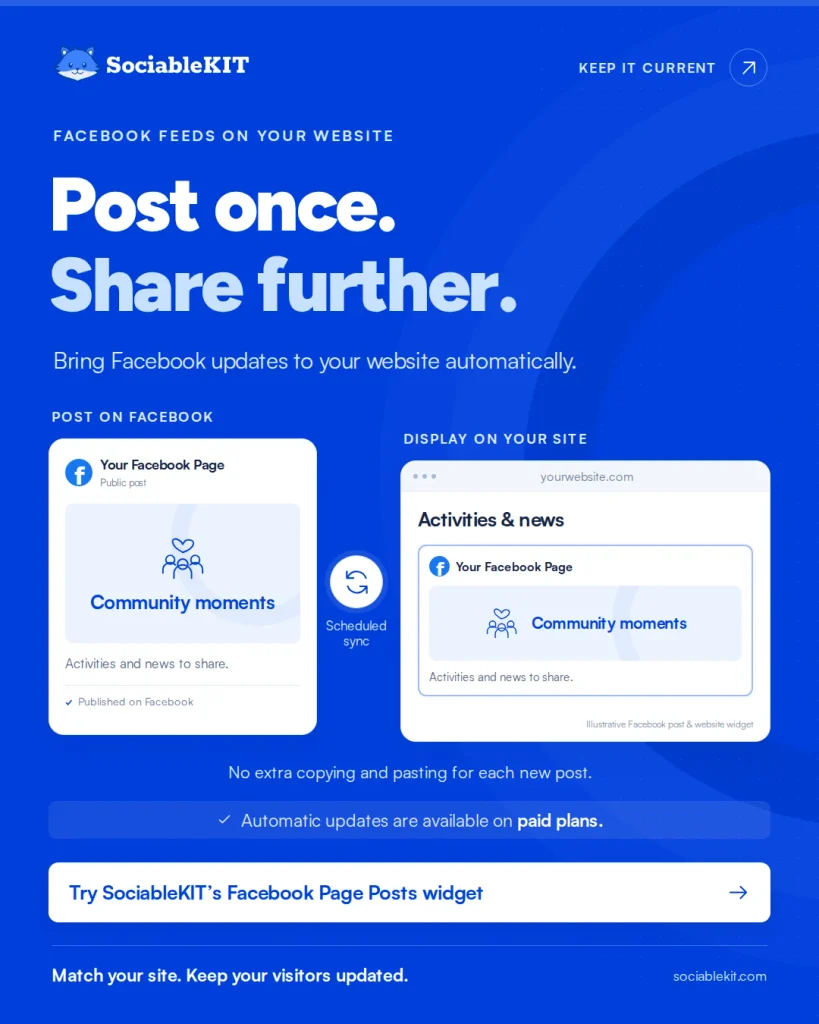
A website widget helps you display Facebook posts in a design that matches your site. Choose one with automatic updates so new posts reach website visitors without extra copying and pasting.
Mowlam Healthcare added a Facebook widget to its website to share updates with families. New posts appear automatically, saving its team from publishing the same content twice. Families can browse activities and news while exploring the care provider’s website.
Try SociableKIT’s Facebook Page Posts widget to create a feed that matches your website, with automatic updates available on paid plans.
Thanks for reading!
Thank you for reading our article on different ways to show your Facebook feed on your website. We hope the options we covered, from built-in tools to customizable widgets, help you find the right fit for your site. Follow us and subscribe to our newsletter for more practical tips on bringing your social content to your website.