
According to a recent survey, 74% of customers use at least two review sources when shopping for products.
Adding Google Reviews to your Shopify store means shoppers don’t need to leave your site to look for a second review source, increasing your website’s dwell time.
There are two ways to embed Google Reviews on your Shopify website. The first method is using a website widget. The second method is using the embed or link option. I will show you the steps for each of those methods so you can decide which one is the best for you.
However, using a widget is the quickest solution for showcasing Google reviews on your Shopify store. That’s where SociableKIT comes in.
Our widget lets you create and customize the Google Reviews feed without coding. You can also use automatic and manual filters to ensure the best testimonials appear first.
Create a SociableKIT widget today and leverage your Google Reviews to build social proof for your business!
Why Add Google Reviews to Your Shopify Store?
Embedding Google Reviews on your Shopify store offers numerous incentives for your business, customers, and website:
- Lead Generation and Conversion: Customer testimonials with user-generated content encourage potential leads to trust your products and make purchase decisions while still on your Shopify store.
- Enhanced SEO Performance: Google reviews with relevant keywords and location-specific phrases help your Shopify Store rank high on SERPs and local searches.
- Effective Customer Engagement: Shoppers will likely spend time interacting with the embedded Google Reviews on your Shopify store. This creates opportunities for introducing customers to your conversion funnel.
- Authenticity: Customer testimonials provide invaluable social proof for your Shopify store, establishing your business as credible and trustworthy.
- Visual Appeal: Embedding a Google Reviews feed helps revamp your Shopify store’s appearance, grabbing visitors’ attention quickly.

Methods to Add Google Reviews to Shopify
Now that you know how important Google Reviews are to your Shopify store, you might want to add them to provide social proof and generate leads.
This section provides step-by-step guides to embedding Google Reviews on Shopify:
Method 1: Use a Website Widget
To quickly embed Google Reviews to your Shopify website, follow the steps below.
- Create your Google Reviews widget here.
- Customize your Google Reviews widget.
- Copy the Google Reviews widget embed code.
- Login to your Shopify website admin panel and create or edit a page.
- Paste the embed code where you want the Google Reviews widget to appear.
- Save and view your page. Done!
That’s easy! Embedding Google Reviews widget on your Shopify website will take only 2 minutes. If you need a more detailed guide, scroll down to follow our complete guide or watch our video guide.
Looking to purchase our premium features like auto-sync, customization, premium support and more? Please check the details on our pricing page here.

Method 2: Use the Embed or Link Option
To add Google reviews to your website using Google’s embed option, follow the steps below.
- Go to google.com/maps/
- Search your Google business profile.
- Click the “Reviews” tab.
- Choose a review and click the 3 dots on the upper left.
- Click the “Share review” option.
- On the popup, click the “Embed…” tab.
- Click “Copy HTML”.
- Login to your website admin panel.
- Create or update a page where you want to put your Google reviews.
- Paste the HTML code you copied earlier.
- It will show the Google map with your company name, review count, and link to your reviews.
- Save your page. Done!
To add Google reviews to your website using Google’s link option, follow the steps below.
- Go to google.com/maps/
- Search your Google business profile.
- Click the “Reviews” tab.
- Choose a review, screenshot, and save the image.
- On the same review, click the 3 dots on the upper left.
- Click the “Share review” option.
- On the popup, click the “Send a link” tab.
- Click “Copy Link”.
- Login to your website admin panel.
- Create or update a page where you want to put your Google reviews.
- Upload the image you saved earlier.
- Highlight the uploaded image and insert a link.
- Paste the link you copied earlier.
- It will show the screenshot of your reviews with link to the actual review on Google.
- Save your page. Done!
You may choose method 1 or method 2, it depends on your needs. However, if you choose method 1, you can follow our complete guide below.

How to Add Google Reviews to Your Shopify Website
Follow our complete guide below to embed Google Reviews on your Shopify website for free. The guide is divided into two parts to make it easier to follow.
Create and Customize Your Google Reviews Widget
The first part is creating your Google Reviews widget using the SociableKIT dashboard. Customize the look and feel to match your brand. Follow the steps below.
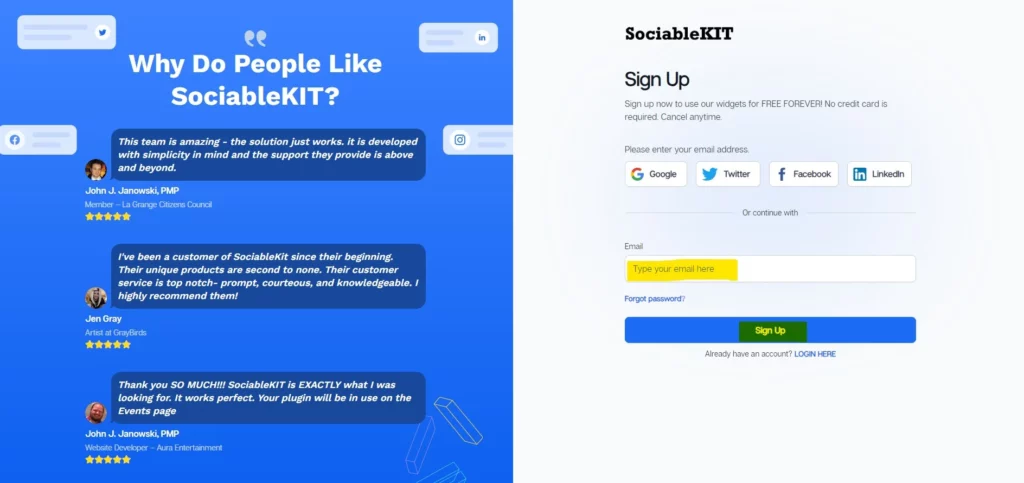
- Sign up FREE or login to SociableKIT. You can login here if you already have an account. Once you sign up, you will start your 7-day premium trial. After 7 days, you can activate the free plan if you don’t need our premium features.
- Select “Google Reviews” on the dropdown. SociableKIT offers several social media feeds widgets. You might need to search it using the highlighted area below. Once found, you can then select it.

Search and select your Google place or enter your Google place ID in the box.
- Customize your feed. Click the “NEXT” button to show the customization options of your social feed. You can change the layout, colors, font, and more to match your brand. Click the Save changes button.

- Copy the embed code. Click the “Embed on website” button on the upper right corner. Select your website builder. On the popup, copy the JavaScript embed code.
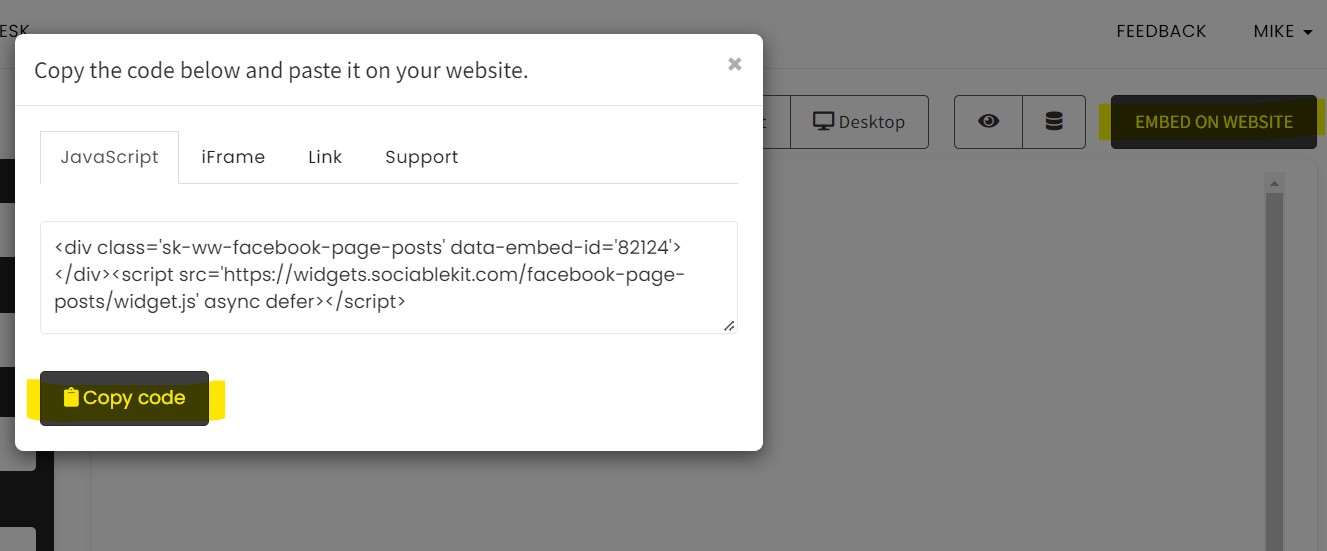

- Paste the embed code and save your Shopify website page. Please follow the second part below to add Google Reviews widget to your Shopify website.
Add Google Reviews Widget to Your Shopify Website
The second part is adding your Google Reviews widget to your Shopify website. After you customize your Google Reviews widget and copied the embed code, it is time to add it to your Shopify website. Follow the steps below.
- Copy your free Google Reviews widget embed code. Make sure you followed the first part above. It detailed how to you can create and customize your widget to get your free embed code.
- Login to Shopify.

- On the left side, click Online Store.

- Click Pages. Add a new page or edit your existing page.

- On the Page details, click Show HTML icon (<>).

- Paste the embed code and click the Save button.

- Click the View page button. Done!

Ready to add Google Reviews to your Shopify store and drive sales?
Use SociableKIT for a seamless way to integrate and customize the Google Reviews feed. Our Google Reviews embed code generator provides a script compatible with all major web builders, so you need not worry about compatibility issues. Also, we have a responsive support desk that replies to queries promptly (within 24 hours on weekdays and 48 hours on weekends).
Sign up for SociableKIT and join thousands of ecommerce shop owners using our widget to showcase positive customer reviews on their Shopify stores!
Video Guide: Embed Google Reviews on Your Shopify Website for Free
Watch our YouTube video below to learn how to embed Google Reviews on your Shopify website for free.
Live Demo Examples of Embedded Google Integration
[sociablekit-demo]
[sociablekit-testimonials]
Common Issues and How to Fix Them
Below are common pitfalls you might encounter when embedding Google Reviews on Shopify and how to address them:
- Defective Feed: Does the feed display an error message or the wrong reviews? Your embed code is likely incorrect, or you’ve connected to the wrong data source. Learn how to find Google Place ID, and then use SociableKIT to generate the correct embed code and add it to your Shopify website.
- Responsiveness Issues: The Google Reviews feed might appear distorted when viewed on smaller screen sizes, such as mobile devices. Embed the Google Reviews using SociableKIT to make the feed mobile-friendly and give visitors a consistent user experience across devices.
- Performance: Embedding multiple Google Reviews feeds on the same web page could slow down your website’s loading speed, undermining user experience. At SociableKIT, we address this issue by configuring our widgets to ‘lazy loading,’ so your website displays the Google Reviews feeds only when visitors scroll to that section.
- Feed Not Updating: Are recent Google Reviews taking too long to display on your Shopify store, or not appearing at all? This often happens when your embedded feed lacks an update function. The good news is that our SociableKIT widget refreshes regularly, ensuring that new customer testimonials appear on your Shopify website quickly.

Embed Google Reviews on Your Shopify Website in 2 Minutes
Quickly upgrade your website by embedding Google Reviews on Shopify website in 2 minutes.
Frequently Asked Questions (FAQs)
Let’s wind up this guide by answering commonly asked questions about adding reviews to Shopify:
Can Google Reviews Help with Local SEO on Shopify?
Yes. Google Reviews can help with local SEO on Shopify, especially when running a location-based store.
For example, positive Google reviews help your location-based Shopify store rank higher on Google’s Local Pack, increasing the chances of high-intent customers clicking on your links.
Is It Safe to Use Third-Party Review Widgets?
Yes. It is safe to use some third-party review widgets.
SociableKIT is safe and doesn’t store users’ personal information without consent. Also, we audit our systems regularly to identify and address potential vulnerabilities, keeping our clients safe.
How Often Are Google Reviews Updated on My Site?
It depends on the integration method you use.
For example, we configure our widgets to auto-refresh regularly so fresh testimonials appear on Shopify. You can also refresh the feed manually using the ‘Request sync’ button on your SociableKIT widget.
Are Google Reviews Widgets Mobile-Friendly?
Yes. Our Google Reviews widget is mobile-friendly. It makes your Google Reviews feed dynamic and responsive, so it adjusts to smaller screen sizes like mobile phones and tablets.
Conclusion
We hope this article has been helpful in showing you how easy it is to add Google reviews to your Shopify website using our free website widgets. Remember, customer reviews are a powerful tool for building trust and credibility with potential customers.
By taking the time to embed them on your website, you’re making it that much easier for your business to stand out and succeed.
Use SociableKIT to streamline the integration process, so you can set up your widget within 2 minutes. Also, enjoy flexible customizations, including personalizing the widget theme and font to blend with your Shopify website.
Create a SociableKIT widget and leverage your Google reviews to generate leads on Shopify!
Thanks for reading!