
Imagine seamlessly integrating the stunning visual stories from your Flickr albums directly into your website. Ready to showcase your photography prowess and creativity in an interactive way? In this guide, we’ll unveil the secrets to effortlessly embedding multiple Flickr albums, transforming your website into a captivating gallery of your memorable moments.
There are two ways to embed Flickr Albums (Multiple Albums) on your website. The first method is using a website widget. The second method is using the ‘share’ option. I will show you the steps for each of those methods so you can decide which one is the best for you.
But if you need a quick solution for adding Flickr photo albums to your website, we recommend using our SociableKIT widget. Our widget’s no-code solution means you do not need web development skills to set up the embed. You can also style the Flickr embed feed to match your website.
Create a SociableKIT widget and experience the convenience of embedding Flickr photo albums without coding!
What Are Flickr Photo Albums and How Do They Work?
Flickr photo albums are images grouped on the basis of shared traits or themes. Compared to traditional photo albums, they provide a versatile way to organize images.
For example, you can include a photo in multiple albums if it aligns with several themes. Similarly, you can upload pictures to Flickr but not include them in any albums.
Below are essential features of Flickr photo albums and how they work:
- Categorical Metadata: You can group Flickr photos based on data, like when and where they were taken, the event, and the theme.
- Privacy: You can restrict content access on specific or all Flickr photo albums.
- Online Community: You can use Flickr to promote your business and build a fanbase for your brand. The platform lets brands and creators curate and share photos and albums with people within and outside the platform.
- Embedding: You can integrate Flickr photos and albums on external websites.
Speaking of embedding, let’s dive deeper into how you can integrate Flickr albums.
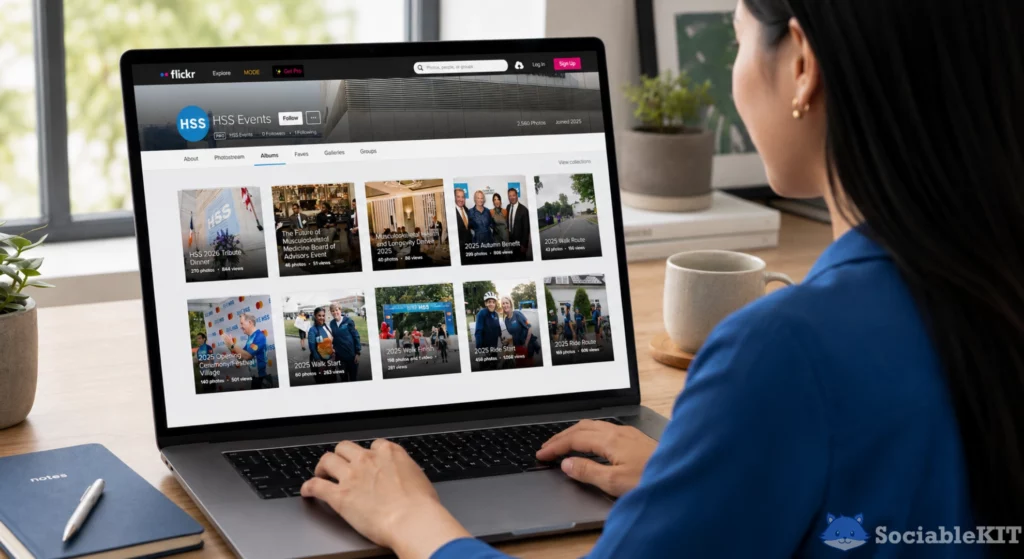
Different Methods to Embed Flickr Album
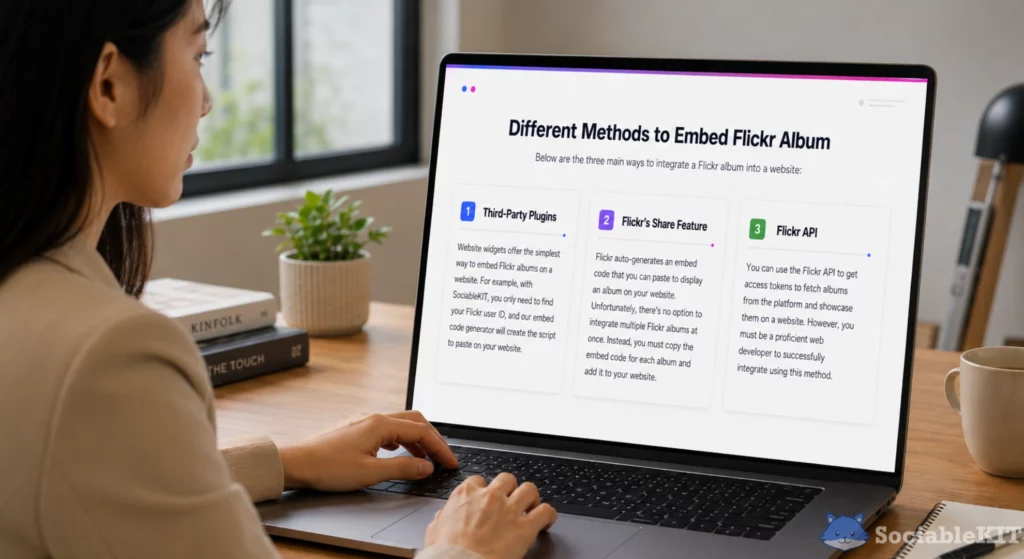
Below are the three main ways to integrate a Flickr album into a website:
- Third-Party Plugins: Website widgets offer the simplest way to embed Flickr albums on a website. For example, with SociableKIT, you only need to find your Flickr user ID, and our embed code generator will create the script to paste on your website.
- Flickr’s Share Feature: Flickr auto-generates an embed code that you can paste to display an album on your website. Unfortunately, there’s no option to integrate multiple Flickr albums at once. Instead, you must copy the embed code for each album and add it to your website.
- Flickr API: You can use the Flickr API to get access tokens to fetch albums from the platform and showcase them on a website. However, you must be a proficient web developer to successfully integrate using this method.
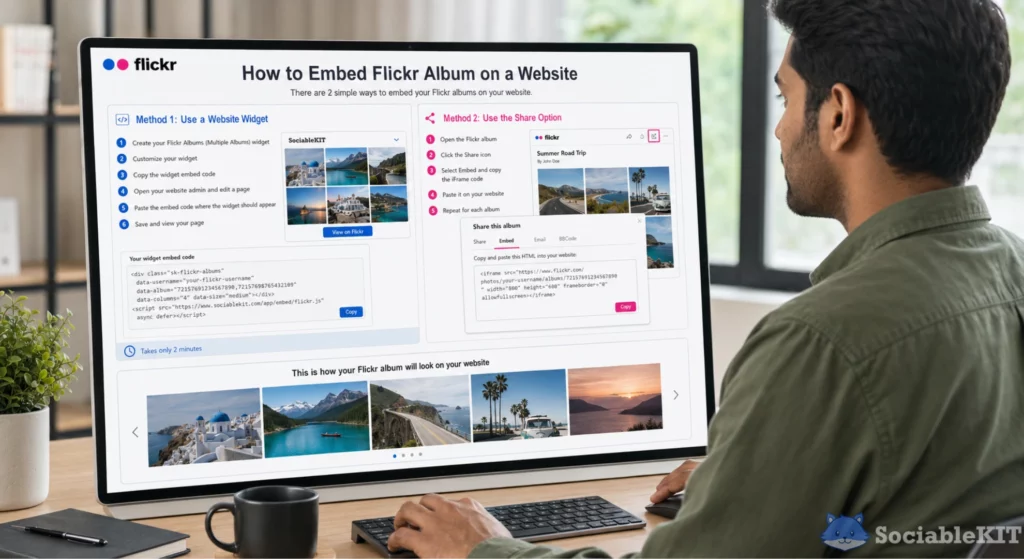
How to Embed Flickr Album on a Website
While there are various ways to integrate Flickr albums into a website, we’ll only focus on using a website widget and Flickr’s share option.
Let’s discuss the steps in detail below:
Method 1: Use a Website Widget
To quickly embed Flickr Albums (Multiple Albums) to your website, follow the steps below.
- Create your Flickr Albums (Multiple Albums) widget here.
- Customize your Flickr Albums (Multiple Albums) widget.
- Copy the Flickr Albums (Multiple Albums) widget embed code.
- Login to your website admin panel and create or edit a page.
- Paste the embed code where you want the Flickr Albums (Multiple Albums) widget to appear.
- Save and view your page. Done!
That’s easy! Embedding Flickr Albums (Multiple Albums) widget on your website will take only 2 minutes. If you need a more detailed guide, scroll down to follow our complete guide or watch our video guide.
Looking to purchase our premium features like auto-sync, customization, premium support and more? Please check the details on our pricing page here.
Method 2: Use the ‘Share’ Option
Follow our step-by-step guide for embedding multiple Flickr albums using the Share option:
- Go to Flickr and open the album you want to embed.
- Click on the Share icon to open the options.
- Select Embed and copy the iFrame code.
- Paste the script on your website where you want the album to appear.
- Repeat the process for all the albums you want to embed
Complete Guide
Follow our complete guide below to embed Flickr Albums (Multiple Albums) on your website for free. The guide is divided into two parts to make it easier to follow.
Create and Customize Your Flickr Albums (Multiple Albums) Widget
The first part is creating your Flickr Albums (Multiple Albums) widget using the SociableKIT dashboard. Customize the look and feel to match your brand. Follow the steps below.
- Sign up FREE or login to SociableKIT. You can login here if you already have an account. Once you sign up, you will start your 7-day premium trial. After 7 days, you can activate the free plan if you don’t need our premium features.

- Select “Flickr Albums (Multiple Albums)” on the dropdown. SociableKIT offers several social media feeds widgets. You might need to search it using the highlighted area below. Once found, you can then select it.

Enter your Flickr multiple album ID.
- Customize your feed. Click the “NEXT” button to show the customization options of your social feed. You can change the layout, colors, font, and more to match your brand. Click the Save changes button.

- Copy the embed code. Click the “Embed on website” button on the upper right corner. Select your website builder. On the popup, copy the JavaScript embed code.

- Paste the embed code and save your website page. Please follow the second part below to add Flickr Albums (Multiple Albums) widget to your website.
Add Flickr Albums (Multiple Albums) Widget to Your Website
The second part is adding your Flickr Albums (Multiple Albums) widget to your website. After you customize your Flickr Albums (Multiple Albums) widget and copied the embed code, it is time to add it to your website. Follow the steps below.
- Copy your free Flickr Albums (Multiple Albums) widget embed code. Make sure you followed the first part above. It detailed how to you can create and customize your widget to get your free embed code.
- Create a new web page or edit your existing web page where you want the widget to appear.

- Open your webpage. You might use a code editor, a rich text editor, or a code block.

- Paste the embed code you copied from SociableKIT earlier.

- Save and publish your web page.

- View your web page with the widget. Done!
Video Guide: Embed Flickr Albums (Multiple Albums) on Your Website for Free
Watch our YouTube video below to learn how to embed Flickr Albums (Multiple Albums) on your website for free.
Customization and Optimization for Embedded Flickr Albums
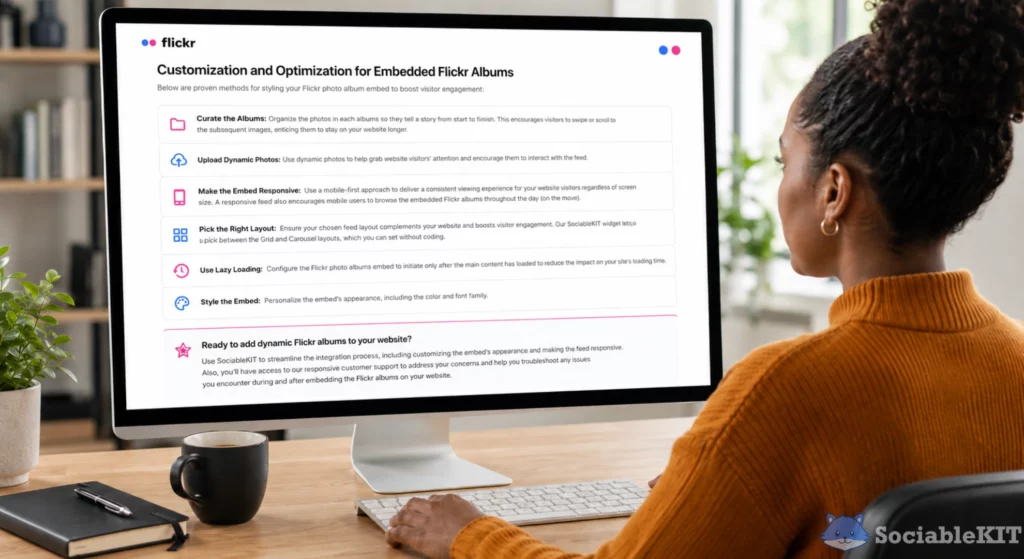
Below are proven methods for styling your Flickr photo album embed to boost visitor engagement:
- Curate the Albums: Organize the photos in each albums so they tell a story from start to finish. This encourages visitors to swipe or scroll to the subsequent images, enticing them to stay on your website longer.
- Upload Dynamic Photos: Use dynamic photos to help grab website visitors’ attention and encourage them to interact with the feed.
- Make the Embed Responsive: Use a mobile-first approach to deliver a consistent viewing experience for your website visitors regardless of screen size. A responsive feed also encourages mobile users to browse the embedded Flickr albums throughout the day (on the move).
- Pick the Right Layout: Ensure your chosen feed layout complements your website and boosts visitor engagement. Our SociableKIT widget lets you pick between the Grid and Carousel layouts, which you can set without coding.
- Use Lazy Loading: Configure the Flickr photo albums embed to initiate only after the main content has loaded to reduce the impact on your site’s loading time.
- Style the Embed: Personalize the embed’s appearance, including the color and font family.
Ready to add dynamic Flickr albums to your website?
Use SociableKIT to streamline the integration process, including customizing the embed’s appearance and making the feed responsive. Also, you’ll have access to our responsive customer support to address your concerns and help you troubleshoot any issues you encounter during and after embedding the Flickr albums on your website.
Sign up for SociableKIT and join other creators and small business owners using our widget to display Flickr albums on their websites!
[sociablekit-demo]
[sociablekit-testimonials]
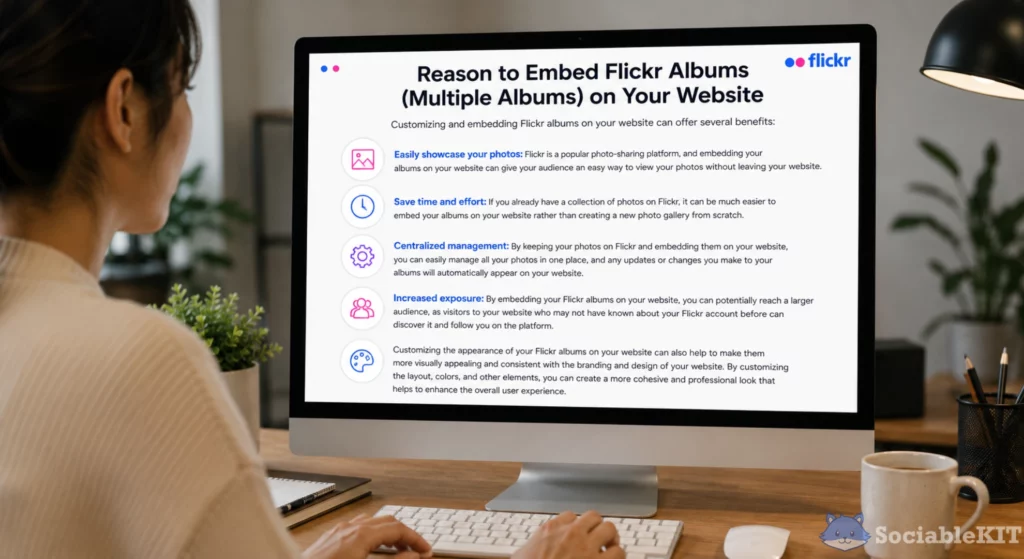
Reason to Embed Flickr Albums (Multiple Albums) on Your Website
Customizing and embedding Flickr albums on your website can offer several benefits:
- Easily showcase your photos: Flickr is a popular photo-sharing platform, and embedding your albums on your website can give your audience an easy way to view your photos without leaving your website.
- Save time and effort: If you already have a collection of photos on Flickr, it can be much easier to embed your albums on your website rather than creating a new photo gallery from scratch.
- Centralized management: By keeping your photos on Flickr and embedding them on your website, you can easily manage all your photos in one place, and any updates or changes you make to your albums will automatically appear on your website.
- Increased exposure: By embedding your Flickr albums on your website, you can potentially reach a larger audience, as visitors to your website who may not have known about your Flickr account before can discover it and follow you on the platform.
Customizing the appearance of your Flickr albums on your website can also help to make them more visually appealing and consistent with the branding and design of your website. By customizing the layout, colors, and other elements, you can create a more cohesive and professional look that helps to enhance the overall user experience.
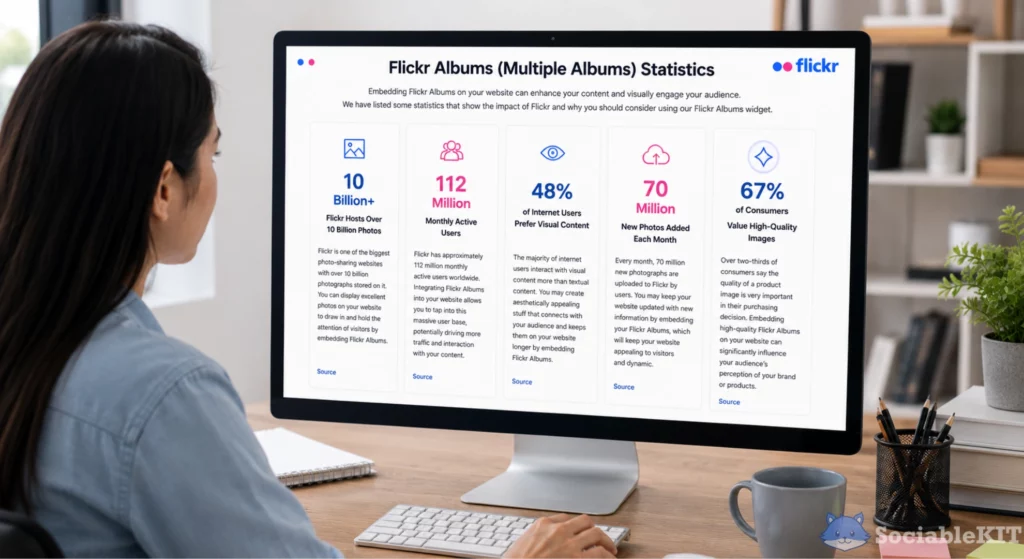
Flickr Albums (Multiple Albums) Statistics
Embedding Flickr Albums on your website can enhance your content and visually engage your audience. We have listed some statistics that show the impact of Flickr and why you should consider using our Flickr Albums widget.
Flickr Hosts Over 10 Billion Photos
Flickr is one of the biggest photo-sharing websites with over 10 billion photographs stored on it. You can display excellent photos on your website to draw in and hold the attention of visitors by embedding Flickr Albums.
112 Million Monthly Active Users
Flickr has approximately 112 million monthly active users worldwide. Integrating Flickr Albums into your website allows you to tap into this massive user base, potentially driving more traffic and interaction with your content.
48% of Internet Users Prefer Visual Content
The majority of internet users interact with visual content more than textual content. You may create aesthetically appealing stuff that connects with your audience and keeps them on your website longer by embedding Flickr Albums.
70 Million New Photos Added Each Month
Every month, 70 million new photographs are uploaded to Flickr by users. You may keep your website updated with new information by embedding your Flickr Albums, which will keep your website appealing to visitors and dynamic.
67% of Consumers Value High-Quality Images
Over two-thirds of consumers say the quality of a product image is very important in their purchasing decision. Embedding high-quality Flickr Albums on your website can significantly influence your audience’s perception of your brand or products.
Incorporating Flickr Albums into your website not only enhances the visual appeal but also keeps your audience engaged and connected to your content.
Flickr Albums (Multiple Albums) on Website Examples
Here are some examples of businesses using our widget to enhance their website:
Franceintheus Flickr Albums (Multiple Albums)
Franceintheus is a media library developed by the Press and Communication Office of the Embassy of France in the United States. They use the SociableKIT Flickr Albums (Multiple Albums) widget to promote their media promotions on their website.

Dang Paddles Flickr Albums (Multiple Albums)
Dang Paddles is a brand that offers the best and most affordable Greek paddles you can imagine. They use the SociableKIT Flickr Albums (Multiple Albums) widget to promote their Greek paddles, keychains, and wood-related products on their website.

Embed Flickr Albums (Multiple Albums) on Your Website in 2 Minutes
Quickly upgrade your website by embedding Flickr Albums (Multiple Albums) on website in 2 minutes.
[sociablekit-website-builder-instructions]
Steps to Troubleshoot Common Issues with Flickr Embed
Though rare, you might encounter issues when embedding Flickr photo albums into a website.
Below are common integration issues and how to address them:
Some Albums Don’t Appear in the Feed
Flickr albums set to ‘Private’ will not appear on your embedded feed.
To resolve this, go to the privacy settings and make the album public. The missing albums should appear on your website when you refresh the feed.
Images Seem to Overlap
Your embed is likely not responsive if the feed appears distorted or the photos overlap. This could turn off the visitors browsing the Flickr albums on mobile, costing you significant traffic.
Use our SociableKIT widget to embed the Flickr photo albums on your website, ensuring the feed is responsive.
Feed is Defective
Does the embedded Flickr feed display an error message? The embed code you used is likely incorrect, or you connected to the wrong data source.
Figuring out where you made the misstep can be hectic and time-consuming. As such, we recommend repeating the embedding process.
Use our SociableKIT widget to generate an accurate script and correct the defective feed. Our widget also specifies the required data ID, ensuring the embed displays the correct Flickr albums.
Embed Doesn’t Work on Some Browsers
The Flickr embed code you use could be incompatible with some browsers, resulting in a blank feed or error message.
With the SociableKIT widget, you can generate a script compatible with all major browsers, including Google Chrome, Safari, Opera, and Microsoft Edge.
Frequently Asked Questions (FAQs)
Now, let’s address commonly asked questions about displaying a Flickr album on a website:
Can I Use Flickr’s Social Media Features for Website Integration?
Yes. You can use Flickr’s social media features for website integration.
For instance, you can add the Flickr follow or photo-sharing buttons next to the feed to encourage visitors to take the target action—following your Flickr profile or reposting the content on their social media accounts.
What Are the Steps to Enable Private Image Share on Flickr?
Follow these steps to enable private image sharing on Flickr:
- Log in to your Flickr account.
- Go to Albums and open the folders containing the photos you want to share.
- Click on the Share icon and select Private Share.
- Click on the Create Share button to save the settings.
Can I Use Flickr Links to Embed a Single Photo Instead of an Album?
Yes. You can use Flickr links to embed a photo instead of an album, as follows:
- Log in to your Flickr account.
- Open your albums and select the photo you want to embed.
- Click the Share icon and select the Embed option.
- Specify your preferred image size.
- Copy the embed code and paste it on your website.
Conclusion
Embedding Flickr photo albums helps you revamp your website and provide interactive content for visitors. A well-curated Flickr feed encourages visitors to engage with the photos, hence spending more time on your website.
The best thing about this Flickr album (multiple albums) widget is that it is very simple to add to your website and costs nothing at all. This is good for businesses and photographers advertising their services. This also means that people can access your albums better without having to leave your website.
Create a SociableKIT widget and curate an engaging Flickr photo albums feed for your website visitors!